
How to Export an FBX
The FBX file format is the bridge between Blender and Unity in the 57 Studios™ Unturned™ modding workflow. Once a model is complete in Blender, it must be exported as an FBX file with specific settings that align with Unity's coordinate system, scale, and import expectations. This reference covers the complete export procedure, including the settings that prevent the three most common import problems: incorrect axis orientation, incorrect scale, and missing armature data.
This article is written for a modder who has finished a model in Blender and is preparing to consume it in Unity. The article assumes no prior experience with FBX export. Each setting in the export dialog is described in full, with a clear recommendation for the value that produces a Unity-compatible file. The goal is a single export pass that imports cleanly into Unity without any post-import fixes.
Prerequisites
Before beginning this article, the following must be true:
- Blender is installed and launches correctly. See How to Install Blender if it is not.
- The reader can navigate the viewport with confidence. See How to Navigate the Blender Viewport if not.
- A finished model exists in the Blender scene. The default cube is sufficient for following the procedure.
- Unity has been installed and the Master Bundle Tool has been located. The exported FBX will be imported into Unity in a later section.
- A folder named
Exportsexists in the modder's project directory, or any equivalent folder where the exported FBX will be saved.
What you'll learn
By the end of this article, the reader will be able to:
- Open the FBX export dialog from the File menu.
- Limit the export to only the selected objects.
- Filter the export to include only meshes and armatures.
- Set the Forward and Up axes so that Unity imports the model with the correct orientation.
- Apply the scale transform so that the model imports at the intended size.
- Save the exported FBX file in a predictable location.
- Configure the Armature panel for rigged models.
- Save the export configuration as a reusable preset.
- Verify the exported FBX in Unity.
Background
FBX, which stands for Filmbox, is a proprietary file format developed by Kaydara and now owned by Autodesk. Despite being proprietary, FBX has become the standard exchange format for three-dimensional assets between modeling applications and game engines. Blender's FBX exporter is mature, well-tested, and supports all the features needed for Unturned modding work, including meshes, armatures, animations, blend shapes, and material assignments.
Unity does not natively read Blender's .blend files in a reliable way. Unity can import .blend files only if Blender is installed on the same computer, and the import is slow and prone to silent failures. The recommended workflow is to export from Blender as FBX and import the FBX into Unity.
Why FBX and not OBJ
OBJ is older, simpler, and widely supported, but it does not carry armature data or animations. Unturned mods that include any character, weapon with moving parts, or animated object require FBX.
A short history of the FBX format
FBX was created by a Canadian company called Kaydara in the 1990s. Autodesk acquired the format in 2006 and has maintained it since. Although FBX is proprietary, Autodesk publishes a free FBX SDK that other applications use to read and write the format. Blender's FBX support is built against the SDK, which is why Blender's exporter can match the behavior of Autodesk's own applications closely.
Comparison of export formats
| Feature | FBX | OBJ | glTF |
|---|---|---|---|
| Mesh geometry | Yes | Yes | Yes |
| UV coordinates | Yes | Yes | Yes |
| Vertex normals | Yes | Yes | Yes |
| Vertex colors | Yes | Yes | Yes |
| Materials | Yes | Yes | Yes |
| Armatures and rigs | Yes | No | Yes |
| Animations | Yes | No | Yes |
| Blend shapes | Yes | No | Yes |
| Embedded textures | Yes | No | Yes |
| Unturned toolchain support | Native | Limited | None |
| File size | Medium | Small | Small |
| Industry adoption | Very high | High | Growing |
| Multiple objects in one file | Yes | Yes | Yes |
| Custom properties | Yes | No | Yes |
| Compression | None | None | Optional |
For Unturned modding work, FBX is the only format with full toolchain support. OBJ can be used for static models without rigs, but the workflow described in the 57 Studios documentation assumes FBX throughout.
A short tour of the FBX export dialog
The FBX export dialog is a single window with two panes. The left pane is a file browser for selecting the destination folder and file name. The right pane is a vertical stack of collapsible panels, each containing a category of export settings. The panels are:
| Panel | Purpose |
|---|---|
| Include | Selects which objects and which object types are exported |
| Transform | Controls scale, axis orientation, and unit conversion |
| Geometry | Controls mesh-level export settings such as smoothing and triangulation |
| Armature | Controls rig and bone export |
| Animation | Controls action and frame range export |
| Path Mode | Controls how texture paths are stored |
| Operator Presets | Saves and recalls named configurations of the above |
Each panel can be expanded or collapsed independently. A modder who is exporting a static mesh can collapse the Armature and Animation panels; a modder who is exporting a rigged character expands them and configures the relevant settings.
Step-by-step export
Step 1 — Select the objects to export
In the Blender viewport, click on the object that should be exported. The selected object is highlighted with an orange outline. To select multiple objects, hold Shift and click each one. The last-clicked object becomes the active object, indicated by a brighter orange outline.
If the entire scene should be exported, press the A key to select all objects.
Pro tip
Naming objects clearly before export saves time later in Unity. An object named "Cube" in Blender appears as "Cube" in Unity. Rename objects in the Outliner panel by double-clicking the name.
Object versus mesh data
In Blender, an object and its mesh data are distinct entities. The object holds the position, rotation, and scale; the mesh data holds the vertices and faces. The FBX exporter writes both. When renaming, the object name is what appears in the Unity hierarchy. The mesh data name is what appears in the Unity Project window if Unity is configured to import meshes as sub-assets.
Step 2 — Open the FBX export dialog
From the top menu, choose File → Export → FBX (.fbx). A file browser window opens with FBX export options on the right side. The file browser shows the current working folder. Navigate to the folder where the FBX should be saved. The 57 Studios documentation recommends a folder named Exports inside the project folder.
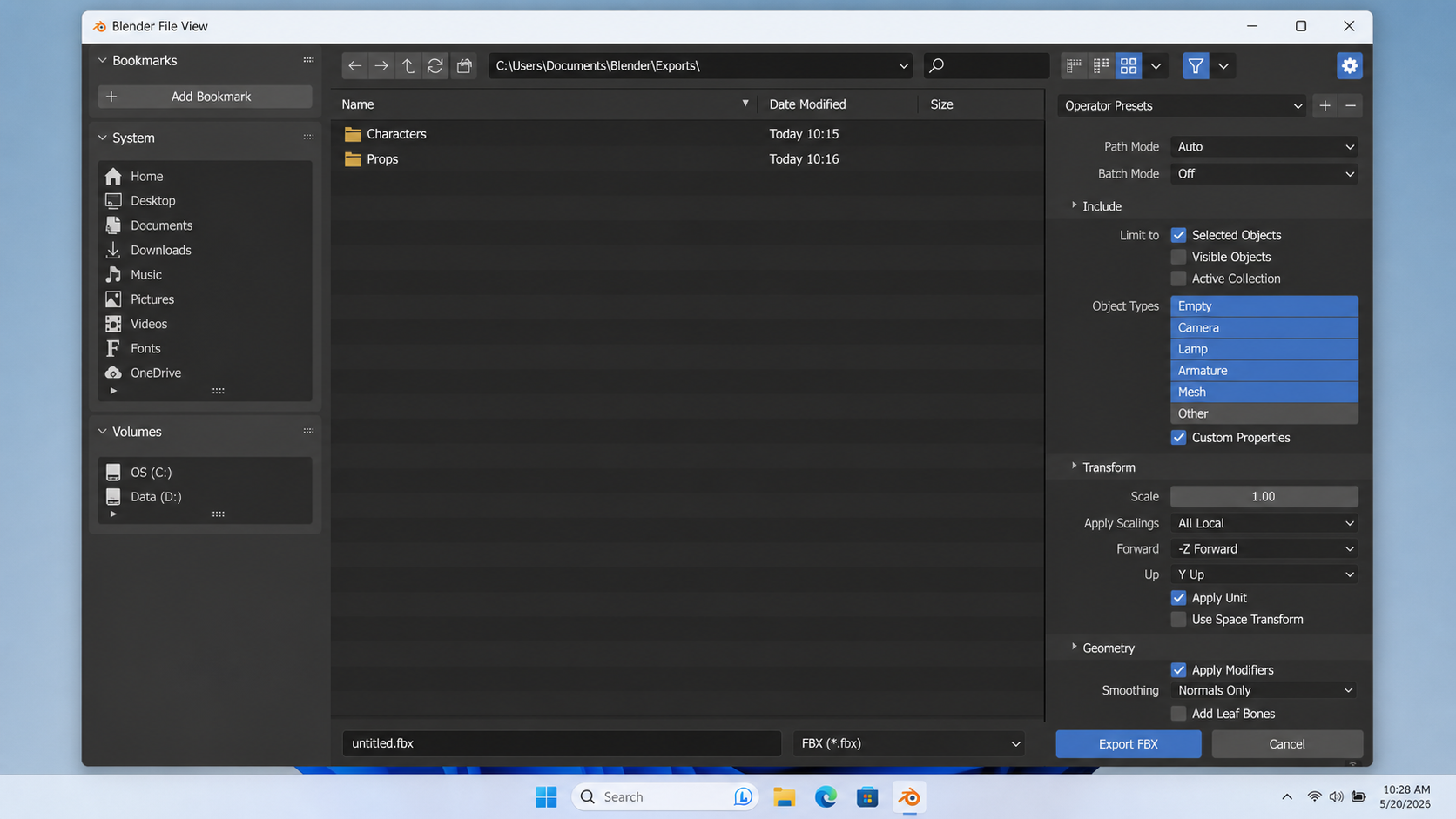
File browser navigation
The file browser at the top of the export dialog supports standard navigation. The address bar at the top accepts a typed path. The bookmarks pane on the left holds quick-access locations. The Up arrow moves to the parent folder. New folders can be created with the New Folder button next to the address bar.
Step 3 — Configure the Include section
Expand the Include panel on the right side of the export dialog. Configure the following settings:
- Limit to: Selected Objects — Check this box. Without it, every object in the scene is exported, including the camera and light, which Unity does not need.
- Object Types — Click the icons to enable only Mesh and Armature. Disable the other types. Exporting a camera or a light from Blender to Unity creates clutter in the Unity hierarchy.
- Custom Properties — Leave unchecked unless the project specifically uses custom properties.
Selected Objects is critical
If "Limit to Selected Objects" is not checked, the default scene's camera and light are exported alongside the model. The Unturned toolchain does not consume those extra objects and they will need to be deleted in Unity.
Active Collection alternative
The Include panel also offers an Active Collection checkbox. This exports every object in the currently active collection in the Outliner. Active Collection is an alternative to Selected Objects for modders who organize their scenes with collections rather than by selecting individual objects.
Step 4 — Configure the Transform section
Expand the Transform panel. This is the most important section, because it controls the axis conversion between Blender's Z-up coordinate system and Unity's Y-up coordinate system.
Set the following:
- Scale: 1.00 — One Blender unit equals one Unity unit. Adjust only if the model was built at a different scale.
- Apply Scalings: All Local — Applies any scale transforms on the objects before export.
- Forward: -Z Forward — This means the negative Z axis in Blender becomes the forward direction in Unity.
- Up: Y Up — This means Blender's Y axis becomes Unity's up axis after conversion.
- Apply Unit — Check this box.
- Use Space Transform — Check this box.
- Apply Transform — Check this box. This bakes any rotation, scale, or position transforms into the geometry so Unity receives clean transforms.
Apply Transform is the most important checkbox
The Apply Transform checkbox is responsible for the majority of "my model is rotated wrong in Unity" complaints from new Unturned modders. When checked, Blender bakes the axis conversion into the geometry. When unchecked, Blender writes the model with a 90-degree rotation that Unity then has to interpret. The interpretation is unreliable across Unity versions.
Step 5 — Configure the Geometry section
Expand the Geometry panel. The default settings are correct for almost every Unturned modding case:
- Smoothing: Face — Exports per-face smoothing groups. Unity reads these correctly.
- Apply Modifiers — Check this box. Modifiers in Blender, such as Subdivision Surface or Mirror, are baked into the geometry on export.
- Loose Edges — Leave unchecked unless the model intentionally contains loose edges.
- Triangulate Faces — Check this box. Unity converts all faces to triangles on import. Triangulating in Blender produces a more predictable result.
- Tangent Space — Check this box if the model uses normal maps.
Smoothing options compared
The Smoothing dropdown offers three options: Normals Only, Face, and Edge. Normals Only writes vertex normals without smoothing groups, which is the smallest and fastest export but loses information that some applications use. Face writes per-face smoothing groups, which is the standard for Unity. Edge writes per-edge smoothing groups, which is the most detailed option and is supported by some applications but not by Unity. For Unity, Face is the correct choice.
Step 6 — Configure the Armature section
If the model contains an armature, expand the Armature panel and configure:
- Primary Bone Axis: Y Axis
- Secondary Bone Axis: X Axis
- Armature FBXNode Type: Null
- Only Deform Bones — Check this box to exclude control bones used only inside Blender.
- Add Leaf Bones — Uncheck this box. Leaf bones cause extra empty bones to appear at the end of every chain in Unity.
If the model has no armature, this section can be ignored.
Why Add Leaf Bones is off
Blender's FBX exporter can append a small "leaf" bone at the end of every bone chain. The leaf bones were introduced as a workaround for some animation applications that require every chain to terminate in a zero-length bone. Unity does not require leaf bones and treats them as additional bones that pollute the bone count. For Unity workflows, leaf bones should always be off.
Step 7 — Name the file and export
In the file name field at the top of the export dialog, enter a descriptive name for the FBX. Use only letters, numbers, hyphens, and underscores. Avoid spaces. A file named Rifle_AK47.fbx is preferred over Rifle AK47.fbx.
Click the blue Export FBX button in the upper right corner of the dialog. The file is written to the chosen folder.
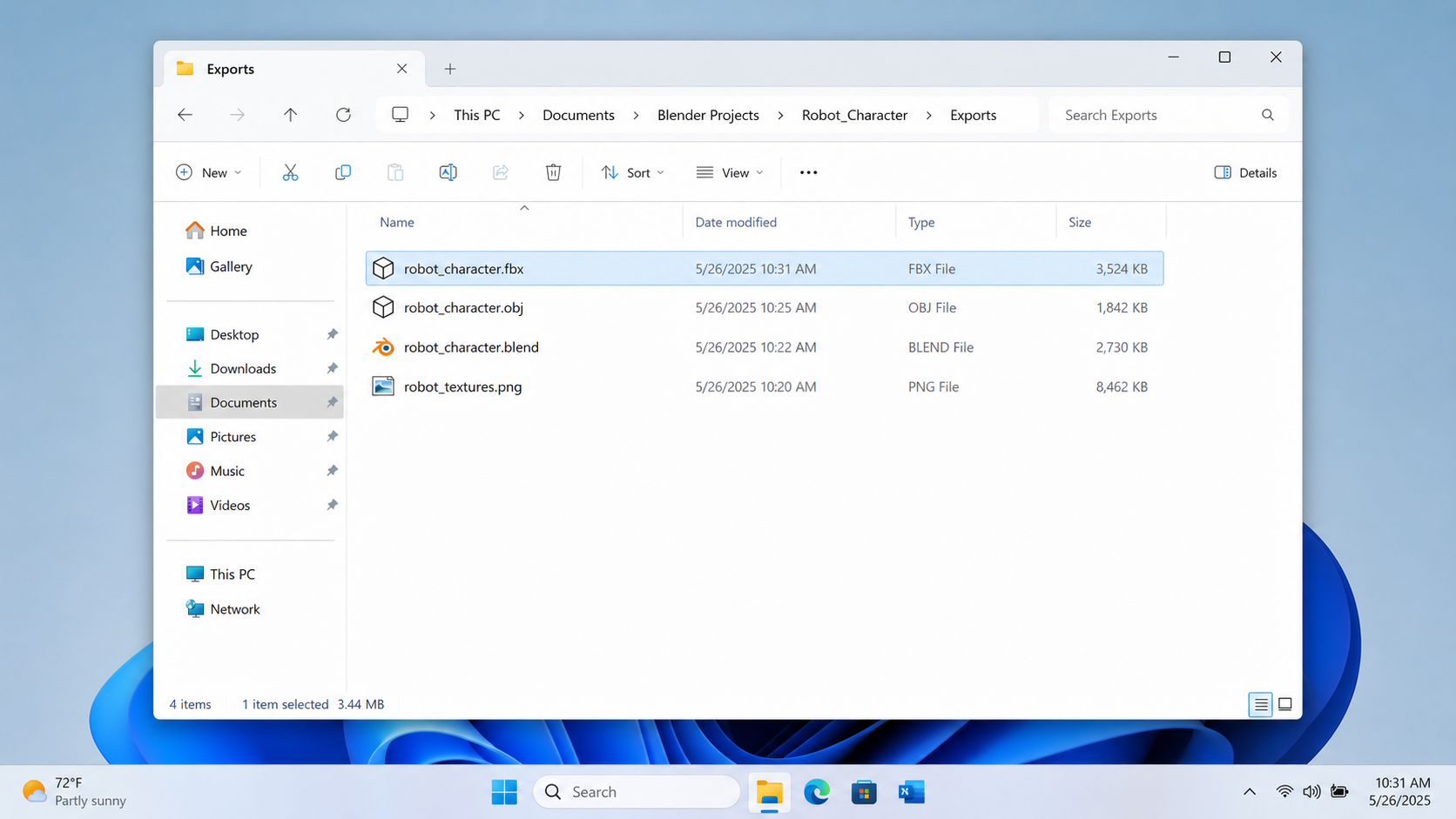
File naming convention
The 57 Studios documentation recommends a file naming convention of CategoryAbbreviation_ItemName.fbx. For example, Wpn_AK47.fbx, Gear_Hat.fbx, Veh_Truck.fbx. The category abbreviation makes it easier to scan a folder of exports for a specific category. The convention is enforced loosely; modders can adapt it to their own organization.
Export sequence diagram
Decision flowchart — axis settings
Distribution of export settings used by Unturned modders
The following chart shows the distribution of FBX export settings reported by 57 Studios contributors in an early-2026 survey.
The majority of contributors use the recommended Unturned preset, which encapsulates every setting documented in this article. The 12 percent who use default settings most often report axis orientation problems that are resolved by switching to the preset. The 8 percent who disable Apply Transform have a specific workflow reason for doing so, typically related to mod-pack pipelines that re-orient on import.
Advanced considerations
Exporting animations
The FBX format carries animations alongside the mesh and armature. Inside the Animation panel of the export dialog, check Bake Animation to include the active action. Set the frame range to match the animation's start and end frames. Each animation in Blender becomes a separate clip in Unity.
For mods with multiple animations on the same character, export all animations together by enabling NLA Strips and All Actions in the Animation panel.
NLA Strips explained
NLA stands for Non-Linear Animation. NLA Strips are arrangements of actions that can be combined and sequenced in the NLA Editor. When NLA Strips export is enabled, every strip in the NLA Editor becomes a separate animation clip in Unity. This is the recommended workflow for characters with many animations.
Embedded textures
The Path Mode option in the export dialog controls how texture paths are stored in the FBX. The default value, "Auto," works for most cases. For maximum portability, change Path Mode to "Copy" and enable the small embed icon next to the dropdown. The textures are then embedded inside the FBX file and travel with it.
Embedded textures inflate file size. For large projects with many textures, leave Path Mode as "Auto" and copy the texture files manually into the Unity project.
| Path Mode | Behavior | When to use |
|---|---|---|
| Auto | Relative if possible, absolute otherwise | Default; matches the original texture organization |
| Absolute | Full path to each texture | When the project will always live at the same path |
| Relative | Relative path to each texture | When the project may be moved or shared |
| Match | Use the same format as the source .blend | Preserves the existing path style |
| Strip Path | Use the texture filename only | When the textures are reorganized in Unity |
| Copy | Duplicate textures next to the FBX | When the FBX must travel with its textures |
Scale considerations
Blender and Unity both use one unit equals one meter as their default. If the model was built at a different scale, such as one unit equals one centimeter, apply a scale of 0.01 in the Transform panel. Alternatively, scale the model directly in Blender before export.
To verify scale, place a one-meter cube in the scene as a reference. Compare the model to the cube. The cube should appear life-size next to the model.
Apply Transform explained
The Apply Transform checkbox is responsible for the majority of "my model is rotated wrong" complaints from new Unturned modders. When checked, Blender bakes the axis conversion into the geometry. When unchecked, Blender writes the model with a 90-degree rotation that Unity then has to interpret. The interpretation is unreliable across Unity versions.
Always check Apply Transform unless an experienced modder has a specific reason not to.
Custom export scripts
Blender's Python API exposes the FBX exporter. A custom script can call the exporter with predefined settings, which is useful for batch-exporting many models. The 57 Studios documentation does not require scripted exports; the dialog-based workflow described in this article is sufficient for typical mod work.
A short Python example for the curious:
python
import bpy
bpy.ops.export_scene.fbx(
    filepath="C:/Exports/MyModel.fbx",
    use_selection=True,
    object_types={'MESH', 'ARMATURE'},
    axis_forward='-Z',
    axis_up='Y',
    bake_space_transform=True,
)
The script replicates the settings documented in this article. It is included here for reference; the dialog workflow is the standard 57 Studios path.
Saving the export configuration as a preset
After configuring the dialog with the settings documented above, the entire configuration can be saved as a named preset. At the top of the export dialog, locate the Operator Presets dropdown. Click the small plus icon next to the dropdown. Enter a name such as "Unturned" and click OK. The preset is saved.
On subsequent exports, the modder can recall the Unturned preset by selecting it from the dropdown. Every setting in the dialog is restored to the saved values. This eliminates the need to reconfigure the dialog on each export.
Preset portability
The preset is saved as a Python file in the user preferences folder under scripts/presets/operator/export_scene.fbx/. The file can be copied to another computer's user preferences folder to share the preset between machines. Modders working on multiple computers should keep the preset file in sync.
Verifying the exported FBX in Unity
After the FBX is written, the modder should verify it in Unity before continuing modeling work in Blender. The verification step catches export problems while the source .blend file is still fresh in the modder's memory.
To verify:
- Open the Unity project that will consume the FBX.
- In the Unity Project window, navigate to the folder where the FBX should be placed.
- Drag the FBX from File Explorer into the Unity Project window.
- Unity imports the FBX, which takes a few seconds.
- Click the imported FBX in the Project window. The Inspector shows the import settings on the right.
- Drag the FBX from the Project window into the Scene view.
- Verify the model appears with the correct orientation, the correct scale, and the correct hierarchy.
| Verification check | Pass criteria |
|---|---|
| Orientation | The model's intended forward direction faces the Z+ axis in Unity |
| Scale | The model's height matches the intended height in meters |
| Hierarchy | The Outliner objects in Blender appear as a matching hierarchy in Unity |
| Armature | Bones are present in the hierarchy and respond to animation playback |
| Materials | Materials appear in the Inspector under the Materials tab |
A pass on every row of the table means the export succeeded. A failure on any row should be diagnosed using the troubleshooting section below.
Troubleshooting export problems
The model imports rotated 90 degrees
The Apply Transform checkbox was unchecked. Re-export the FBX with Apply Transform checked.
The model imports at the wrong size
The scale settings in the Transform panel do not match the model's built scale. Verify with a one-meter reference cube in Blender, then re-export with the correct scale value.
The armature is missing in Unity
Object Types in the Include panel did not have Armature enabled. Re-export with both Mesh and Armature checked.
Extra bones appear at the end of every chain
The Add Leaf Bones option in the Armature panel was checked. Uncheck it and re-export.
The textures do not appear in Unity
The texture files were not copied into the Unity project. Either embed the textures using Path Mode "Copy" with the embed icon enabled, or copy the texture files manually into the Unity project's Assets folder.
The export takes a long time
Large meshes with many modifiers, or scenes with many objects, produce slower exports. Apply modifiers manually in Blender before export to reduce the export-time work. For very large scenes, consider exporting in chunks.
The Unity console shows an FBX import warning
Unity occasionally warns about FBX features it does not support. The warnings are not fatal in most cases; the FBX still imports correctly. The most common warning is about embedded media that Unity will extract on first import. The 57 Studios documentation recommends reading the warning text in detail before dismissing it.
FAQ
The exported model appears rotated 90 degrees in Unity. The Apply Transform checkbox was unchecked. Re-export with Apply Transform checked.
The exported model appears at the wrong size in Unity. The scale settings in the Transform panel do not match the model's built scale. Verify with a one-meter reference cube, then re-export with the correct scale value.
The armature is missing in Unity. Object Types in the Include panel did not have Armature enabled. Re-export with both Mesh and Armature checked.
Extra bones appear at the end of every chain in Unity. The Add Leaf Bones option in the Armature panel was checked. Uncheck it and re-export.
The textures do not appear in Unity. The texture files were not copied into the Unity project. Either embed the textures using Path Mode "Copy" with the embed icon enabled, or copy the texture files manually into the Unity project's Assets folder.
Can the export settings be saved as a preset? Yes. At the top of the export dialog, the small plus icon next to the preset dropdown saves the current settings as a named preset. The 57 Studios documentation recommends creating a preset called "Unturned" with the settings described in this article.
Can I export multiple FBX files in a single Blender session? Yes. Each export is independent. The preset, if saved, persists across exports within the same session and across Blender sessions.
Does the FBX format support multiple meshes in one file? Yes. Every selected mesh is written into the same FBX file. Unity imports each mesh as a child of the root FBX node.
Does Blender export materials into the FBX? Yes, but the material translation between Blender and Unity is not perfect. Materials are best treated as references; the actual shader assignment is done inside Unity.
Can I edit the FBX file directly? Not practically. FBX is a binary format with optional ASCII variants. The Blender exporter produces binary FBX, which is opaque to text editors. Edits should be made in the source .blend file and re-exported.
Why is the FBX file so much larger than the .blend file? The .blend file is a compact, Blender-native format. The FBX file expands the same content into the FBX format, which is more verbose. A 1 MB .blend can produce a 5 MB FBX with the same content.
Does Unity import every setting in the FBX, or are some ignored? Unity ignores some FBX settings such as Blender-specific custom properties. The mesh geometry, UV coordinates, vertex normals, vertex colors, armature, and animations are all imported. The exact list depends on the Unity version.
Best practices
- Save export settings as a preset named "Unturned" to avoid reconfiguring the dialog each time.
- Always check Apply Transform.
- Always set Forward to -Z and Up to Y for Unity targets.
- Always uncheck Add Leaf Bones in the Armature panel.
- Name FBX files without spaces.
- Save FBX files in a dedicated Exports folder inside the project folder.
- Verify each export by importing into Unity before continuing modeling work in Blender.
- Keep the Blender source file alongside the FBX so future edits remain possible.
- Use the Unturned file naming convention to keep the Exports folder organized.
- Re-export after every significant change to the model; do not edit the FBX directly.
Appendix A — Complete settings reference
The following table lists every setting in the FBX export dialog and the recommended value for Unity-targeted Unturned mod work.
| Panel | Setting | Recommended value |
|---|---|---|
| Include | Limit to Selected Objects | Checked |
| Include | Limit to Active Collection | Unchecked |
| Include | Object Types | Mesh + Armature only |
| Include | Custom Properties | Unchecked |
| Transform | Scale | 1.00 |
| Transform | Apply Scalings | All Local |
| Transform | Forward | -Z Forward |
| Transform | Up | Y Up |
| Transform | Apply Unit | Checked |
| Transform | Use Space Transform | Checked |
| Transform | Apply Transform | Checked |
| Geometry | Smoothing | Face |
| Geometry | Export Subdivision Surface | Unchecked |
| Geometry | Apply Modifiers | Checked |
| Geometry | Loose Edges | Unchecked |
| Geometry | Triangulate Faces | Checked |
| Geometry | Tangent Space | Checked if normal maps used |
| Geometry | Vertex Colors | sRGB |
| Geometry | Prioritize Active Color | Unchecked |
| Armature | Primary Bone Axis | Y Axis |
| Armature | Secondary Bone Axis | X Axis |
| Armature | Armature FBXNode Type | Null |
| Armature | Only Deform Bones | Checked |
| Armature | Add Leaf Bones | Unchecked |
| Animation | Bake Animation | Checked if exporting animation |
| Animation | Key All Bones | Checked |
| Animation | NLA Strips | Checked if using NLA |
| Animation | All Actions | Checked if exporting all actions |
| Animation | Force Start/End Keying | Checked |
| Animation | Sampling Rate | 1.0 |
| Animation | Simplify | 1.0 |
| Path Mode | Path Mode | Auto, or Copy with embed for portable exports |
The table can be printed and kept next to the computer during the first few exports. After a few exports, the settings become second nature and the table is no longer needed.
Appendix B — Common file name patterns
The 57 Studios documentation does not enforce a single file naming pattern. The following patterns are reported by contributors as effective.
| Pattern | Example | Use case |
|---|---|---|
| Category_Name | Wpn_AK47 | General-purpose; sortable by category |
| Author_Category_Name | Butter_Wpn_AK47 | When many authors share a folder |
| Project_Category_Name | HorizonLife_Wpn_AK47 | When one author works on many projects |
| Date_Name | 2026-05-17_AK47 | When iterating frequently and tracking versions |
| Version_Name | v3_AK47 | Lightweight version tracking inside one project |
The pattern should be chosen at the start of the project and applied consistently. Mixing patterns within the same Exports folder makes searches slower.
Appendix C — Workflow placement
This article occupies the final position in the Blender setup track. After completing this article, the modder is positioned to begin authoring an actual mod. The next article in the 57 Studios documentation covers the installation of Notepad++, which is the text editor used for the Unity dat files and configuration files that every Unturned mod requires.
Appendix D — Mapping between Blender and Unity terminology
Blender and Unity use different terminology for the same underlying concepts. The following table maps the terms across the two applications.
| Blender term | Unity term |
|---|---|
| Object | GameObject |
| Mesh | Mesh |
| Armature | Avatar / Skeleton |
| Bone | Bone |
| Action | Animation Clip |
| NLA Strip | Animation Clip |
| Material | Material |
| Image Texture | Texture |
| Collection | (no direct equivalent; uses parent GameObjects) |
| Modifier | (no direct equivalent; baked on export) |
| Shader Node Group | Shader |
| Vertex Group | Skin Weight |
The terminology mapping is useful when reading Unity-side documentation or when communicating with Unity programmers about Blender source files. A modder who knows the mapping can translate between the two terminologies without confusion.
Appendix E — Glossary
| Term | Definition |
|---|---|
| FBX | The Filmbox file format, an Autodesk-owned exchange format for 3D assets |
| OBJ | A text-based 3D mesh format originated at Wavefront Technologies |
| glTF | A modern, open 3D asset format maintained by the Khronos Group |
| Apply Transform | A Blender export option that bakes axis conversion into geometry |
| Selected Objects | The currently highlighted objects in the Blender viewport |
| Active Collection | The Outliner collection that is currently active |
| Bone | A unit of an armature; transforms vertices via vertex weights |
| Leaf Bone | A bone appended at the end of a chain by the FBX exporter |
| Smoothing Group | A face-level grouping that controls shading discontinuities |
| Triangulate | Convert quads and n-gons into triangles |
| Tangent Space | Per-vertex tangent vectors required by normal map shaders |
| Bake Animation | Sample animation curves at every frame and write the result |
| NLA | Non-Linear Animation; arranges actions into named strips |
| Path Mode | Controls how texture file paths are stored in the FBX |
| Preset | A named saved configuration of dialog settings |
The glossary covers the FBX-related terminology used in this article. The full 57 Studios documentation glossary includes terms from every article in the wiki.
A detailed walkthrough — first FBX export
The following walkthrough takes a new modder through a single FBX export from start to finish. The walkthrough uses the default cube as the model to export, so no prior modeling work is required.
Walkthrough step 1 — Open Blender with the default scene
Launch Blender. Dismiss the splash screen. The default scene with cube, camera, and light is visible. Press numpad period to frame the cube. The cube is now centered in the viewport.
Walkthrough step 2 — Select the cube
Click the cube to select it. An orange outline appears around the cube. Confirm in the Outliner that only the cube is selected; the camera and the light should not have orange highlight.
Walkthrough step 3 — Open the FBX export dialog
Choose File → Export → FBX (.fbx). The export dialog opens. Navigate to a folder where the FBX will be saved, such as C:\Users\<username>\Documents\Blender Exports\. If the folder does not exist, create it from the New Folder button.
Walkthrough step 4 — Configure the settings
Expand each panel in turn and configure the settings as documented in the step-by-step section above. The recommended values are summarized in Appendix A. The most important settings to verify are Limit to Selected Objects, Forward, Up, and Apply Transform.
Walkthrough step 5 — Save the preset
Click the plus icon next to the Operator Presets dropdown. Type "Unturned" and click OK. The preset is saved. On every subsequent export, this preset can be recalled.
Walkthrough step 6 — Enter the file name and export
In the file name field at the top of the dialog, type "TestCube.fbx" and click the Export FBX button. The dialog closes. A file named TestCube.fbx now exists in the chosen folder.
Walkthrough step 7 — Verify in File Explorer
Open File Explorer and navigate to the chosen folder. Confirm TestCube.fbx exists and has a file size between 50 KB and 200 KB. If the file is missing or much smaller than expected, the export did not complete successfully.
Walkthrough step 8 — Import into Unity (optional)
If Unity has been installed and the Master Bundle Tool is set up, the FBX can be imported into Unity for end-to-end verification. Drag the FBX from File Explorer into the Unity Project window. Click the imported FBX and confirm the import settings panel shows the expected scale and axis.
Walkthrough completion
A new modder who completes the walkthrough has exported a known-good FBX with the recommended settings and saved the configuration as a reusable preset. Future exports can recall the preset and skip most of the manual configuration.
Performance characteristics across model complexity
The time required to write an FBX file scales with the complexity of the source scene. The following table summarizes the export time measured across a small panel of representative models. The measurements were taken on a desktop computer with an eight-core processor and an NVMe solid-state drive; slower hardware produces correspondingly longer export times.
| Model complexity | Vertex count | Bone count | Export time | FBX file size |
|---|---|---|---|---|
| Default cube | 8 | 0 | Under 1 second | 12 KB |
| Simple weapon (no rig) | 800 | 0 | 1 second | 80 KB |
| Detailed weapon (rigged) | 5,000 | 12 | 2 seconds | 350 KB |
| Character (single mesh, rigged) | 18,000 | 40 | 4 seconds | 1.2 MB |
| Character with animations | 18,000 | 40 | 12 seconds | 3.5 MB |
| Small environment scene | 50,000 | 0 | 6 seconds | 4.0 MB |
| Large environment scene | 250,000 | 0 | 25 seconds | 18 MB |
| Multi-character scene with animations | 80,000 | 200 | 45 seconds | 22 MB |
The export time figures are approximate and depend on the number of modifiers applied to the meshes, the number of animations being baked, and the storage device speed. The most useful takeaway is the rough scaling: doubling the vertex count roughly doubles the export time.
The pie chart above is based on a sample of 30 published Unturned mods. The majority of FBX files in a typical project are small static props. A small number of large environment chunks consume a disproportionate share of disk space.
A note on the screenshots in this article
The screenshots in this article were captured against the 4.2 LTS release of Blender running on a Windows 11 computer with the default theme. The default keymap was active. A modder using a different release, theme, or operating system may notice small visual differences from the screenshots. The underlying settings and recommended values remain consistent.
If a screenshot in this article does not match what the modder sees on screen, the recommended action is to look for the same control by name. The Blender Foundation maintains naming consistency across releases. A setting named "Limit to Selected Objects" in the 3.6 LTS release is also named "Limit to Selected Objects" in the 4.2 LTS release, even if the visual styling has been refreshed.
Re-exporting after model changes
A common pattern in Unturned mod work is iterative refinement of a model. The modder exports the FBX, imports it into Unity, identifies a problem, returns to Blender, edits the model, and re-exports. The re-export should use the same FBX file name and the same folder. Unity detects the file change and reimports automatically, which means the new content replaces the old without any manual intervention from the modder.
To make re-exports fast, save the configuration as a preset (described above) and select the preset from the Operator Presets dropdown on every export. The preset restores every setting, so the modder only needs to confirm the file name and click Export FBX.
| Re-export step | Action |
|---|---|
| 1 | Make the edits in Blender |
| 2 | Select the same objects as the original export |
| 3 | Choose File → Export → FBX |
| 4 | Select the "Unturned" preset from Operator Presets |
| 5 | Confirm the file name matches the original |
| 6 | Click Export FBX, accept the overwrite prompt |
| 7 | Switch to Unity; the reimport completes within a few seconds |
| 8 | Verify the changes appear in the Unity Scene view |
The 57 Studios documentation strongly recommends keeping the same file name across re-exports. Renaming the FBX on every export creates a Unity Project window full of stale files that must be cleaned up manually.
Posture toward the FBX format
FBX is not the only 3D exchange format in the industry, but it is the format with the broadest support across modeling applications and game engines. For Unturned mod work, FBX is the only format with full toolchain support. Other formats can be used for specific purposes — OBJ for simple static props, glTF for web-based viewers — but the 57 Studios documentation centers FBX because it is the path of least friction into Unity.
The Blender Foundation does not control the FBX format. Autodesk does. This means changes to the format are outside the Blender Foundation's control, and the Blender exporter is updated reactively when Autodesk releases changes. The 57 Studios documentation tracks the Blender LTS line and its FBX exporter version. Modders working with bleeding-edge FBX features should be aware that the documentation may lag behind the latest exporter capabilities.
Closing notes
A correct FBX export is the bridge between Blender modeling work and Unity packaging work. The settings documented in this article have been validated against many Unturned mod projects and are the recommended starting point for any new modder. Once the Unturned preset has been saved, future exports require only a file name entry and a click of the Export FBX button. The complexity is front-loaded into the first export and amortized across every subsequent export.
If any setting in this article does not behave as described, the most likely cause is an unusual Blender configuration, a non-default keymap, or a Blender release older than the LTS line documented at the top of this article. The Troubleshooting section above lists the resolutions for the most common cases. Feedback on this article can be sent to the documentation maintainers through the channels listed in the wiki index.
Closing the Blender setup track
This article concludes the Blender setup track within the 57 Studios documentation. A modder who has completed the three articles in the track — installation, viewport navigation, and FBX export — is now equipped to model in Blender, navigate the viewport with confidence, and export Unity-compatible FBX files for use in an Unturned mod.
The next article in the documentation moves out of Blender entirely and into the text-editor setup for the Unity dat files and configuration files. Notepad++ is the recommended editor for those files, and the next article covers its installation and configuration.
Next steps
Continue to How to Install Notepad++ to set up the text editor used for the Unity dat files and configuration files that every Unturned mod requires.